As a supplier of Smart Water Bottles, I often get asked about how to transfer data from these innovative devices to a computer. In this blog post, I'll walk you through the step-by-step process, discuss different types of smart water bottles we offer, and highlight why data transfer is crucial for users.


Understanding the Importance of Data Transfer
Smart water bottles are not just ordinary containers; they are equipped with sensors that collect valuable data such as water intake, temperature, and even the time of consumption. Transferring this data to a computer allows users to analyze their hydration patterns, set goals, and make informed decisions about their health and wellness. For example, by tracking their daily water intake over a period of time, users can ensure they are meeting the recommended daily amount, which is essential for maintaining proper bodily functions.
Types of Smart Water Bottles We Offer
We offer a range of smart water bottles to cater to different needs and preferences. Here are some of our popular products:
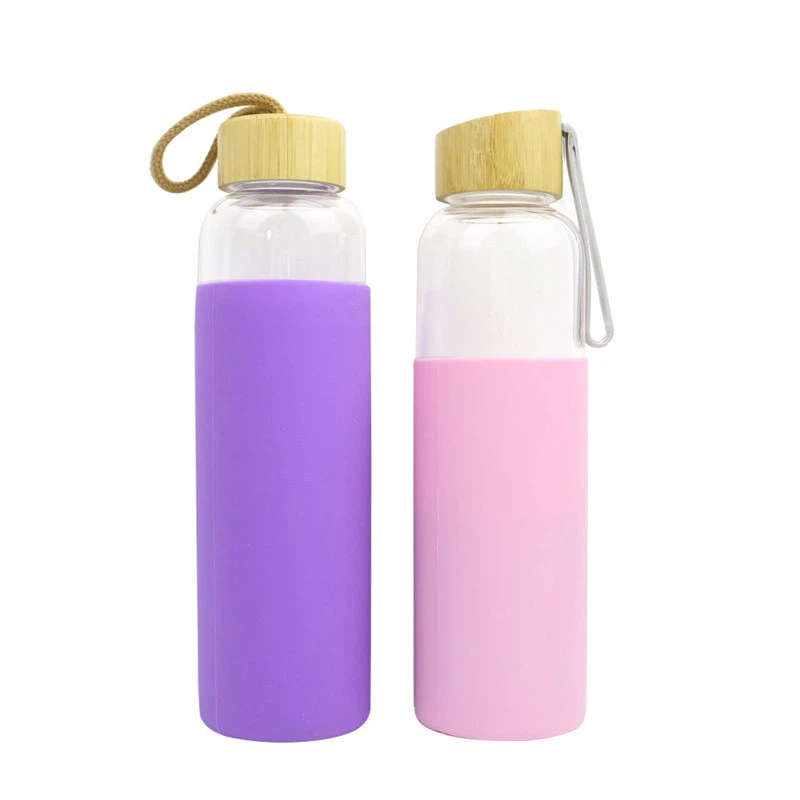
- Smart Bottle: This sleek and modern bottle is designed to track your water intake and remind you to stay hydrated throughout the day. It connects to your computer via Bluetooth, making data transfer quick and easy.
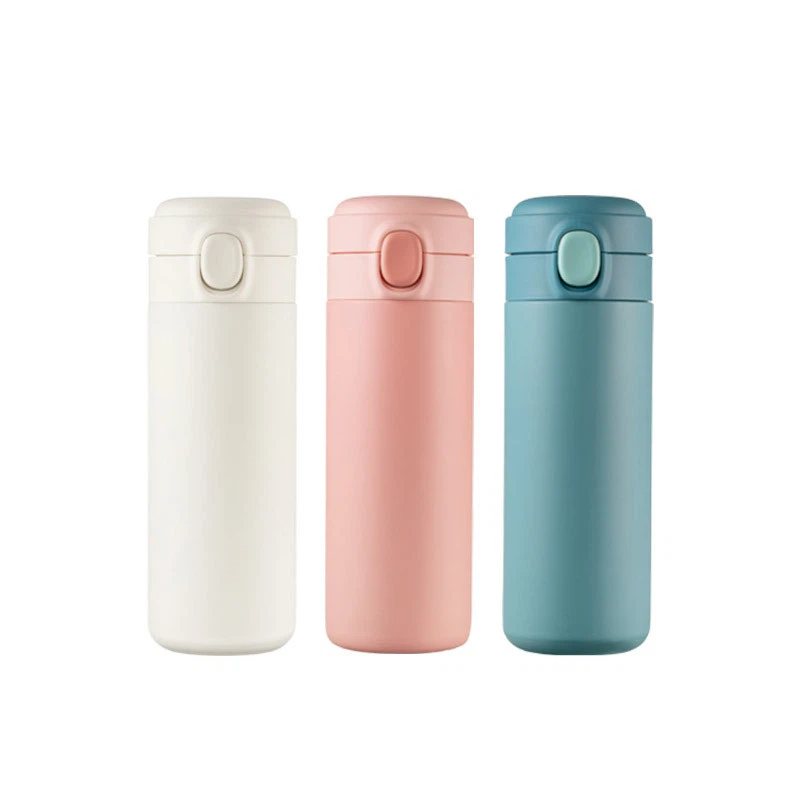
- Temperature Water Bottle: Ideal for those who want to keep their drinks at the perfect temperature, this bottle not only tracks water intake but also monitors the temperature of your beverage. It can be synced with your computer to view detailed temperature logs.
- Smart Thermos Flask: Combining the functionality of a thermos with smart features, this flask keeps your drinks hot or cold for hours while tracking your hydration habits. It uses Wi-Fi to transfer data to your computer, providing seamless connectivity.
Step-by-Step Guide to Transferring Data
Now that you're familiar with our smart water bottles, let's dive into the process of transferring data to your computer. The steps may vary slightly depending on the type of bottle you have, but the general process is as follows:
Step 1: Prepare Your Devices
Make sure your smart water bottle is fully charged and your computer is connected to the internet. If you're using a Bluetooth-enabled bottle, ensure that Bluetooth is turned on both on your bottle and your computer. For Wi-Fi-connected bottles, connect your computer to the same Wi-Fi network as your bottle.
Step 2: Download the App
Most of our smart water bottles come with a dedicated mobile app that allows you to manage and transfer data. Download the app from the App Store or Google Play Store and install it on your smartphone. Follow the on-screen instructions to create an account and pair your bottle with the app.
Step 3: Connect Your Bottle to the App
Once the app is installed and you've created an account, open the app and follow the prompts to connect your smart water bottle. This may involve scanning a QR code on the bottle or entering a pairing code. Once connected, the app will start syncing data from your bottle.
Step 4: Transfer Data to Your Computer
To transfer data from the app to your computer, follow these steps:
- Open the app on your smartphone and log in to your account.
- Navigate to the data transfer or sync section of the app. This may be located in the settings menu or a dedicated data management tab.
- Select the option to transfer data to your computer. You may be able to choose between different file formats, such as CSV or Excel.
- Follow the on-screen instructions to complete the data transfer. This may involve connecting your smartphone to your computer via USB or using a cloud storage service to upload the data.
Step 5: Analyze the Data
Once the data is transferred to your computer, you can use spreadsheet software or data analysis tools to analyze the information. Look for trends in your water intake, identify patterns in your hydration habits, and set goals to improve your overall health and wellness.
Troubleshooting Tips
If you encounter any issues during the data transfer process, here are some troubleshooting tips to help you resolve them:
- Check the Battery: Make sure your smart water bottle is fully charged. A low battery can cause connectivity issues and prevent data transfer.
- Update the App: Ensure that you're using the latest version of the app. Developers often release updates to fix bugs and improve performance.
- Restart Your Devices: Sometimes, simply restarting your smart water bottle, smartphone, and computer can resolve connectivity issues.
- Contact Support: If you're still experiencing problems, don't hesitate to contact our support team. We're here to help you resolve any issues and ensure that you're getting the most out of your smart water bottle.
Conclusion
Transferring data from a smart water bottle to your computer is a simple and straightforward process that allows you to gain valuable insights into your hydration habits. By tracking your water intake and analyzing the data, you can make informed decisions about your health and wellness. At [Our Company], we're committed to providing high-quality smart water bottles that are easy to use and offer seamless data transfer. If you're interested in purchasing one of our smart water bottles or have any questions, please don't hesitate to [Contact Us]. We look forward to helping you stay hydrated and healthy!
References
- American Heart Association. (2023). Drinking Water: Quantity and Quality for Good Health.
- Centers for Disease Control and Prevention. (2023). Importance of Drinking Water.